|
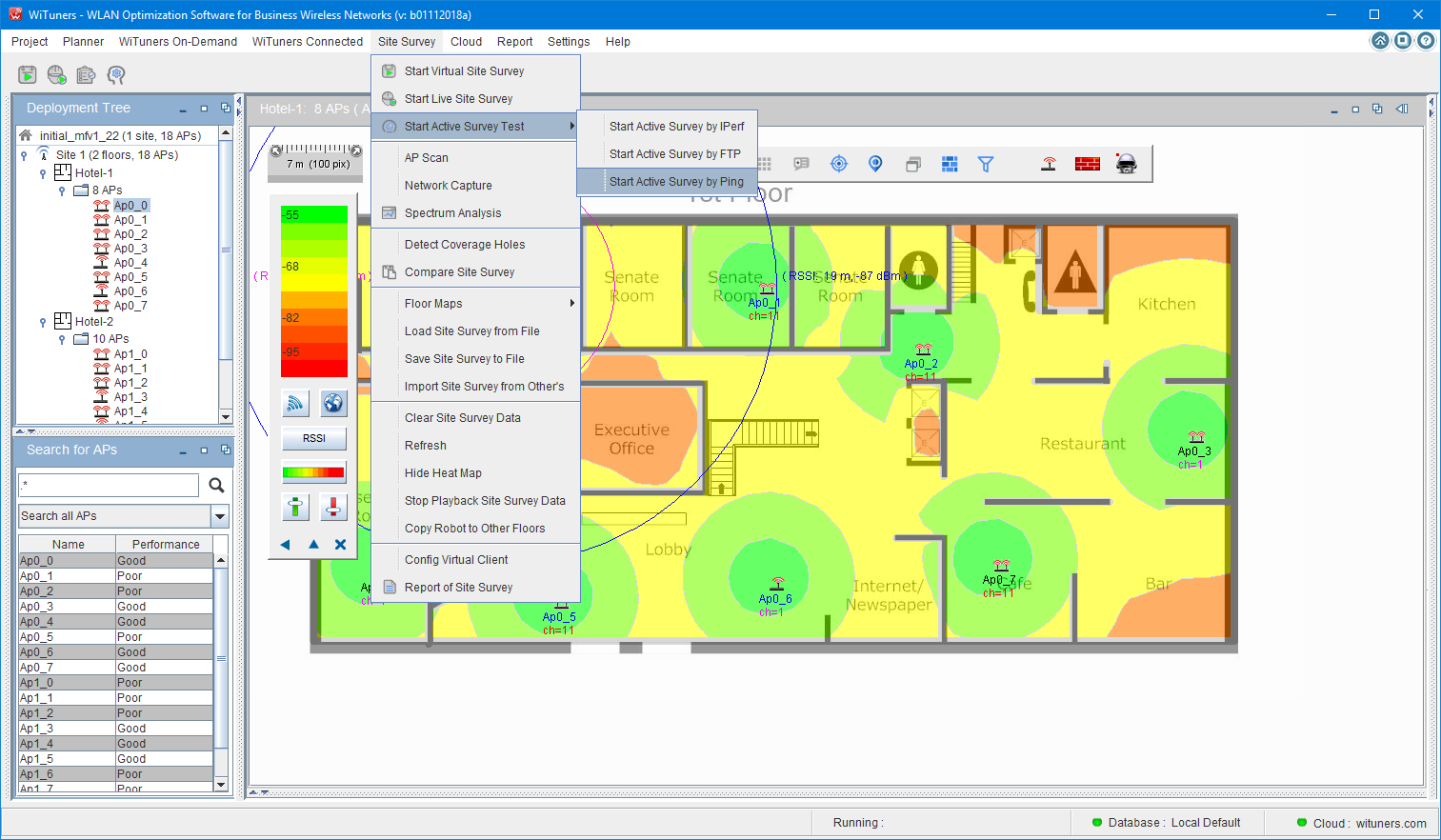
Active Survey Test by Ping
Clicking on "Site Survey" on System Menu Bar, then select "Start Active Survey Test"-->"Active Survey Test By Ping" as shown on the image above, the "Active Survey Test By Ping" window comes up to front as below:
1. The window of Active Survey Test By Ping
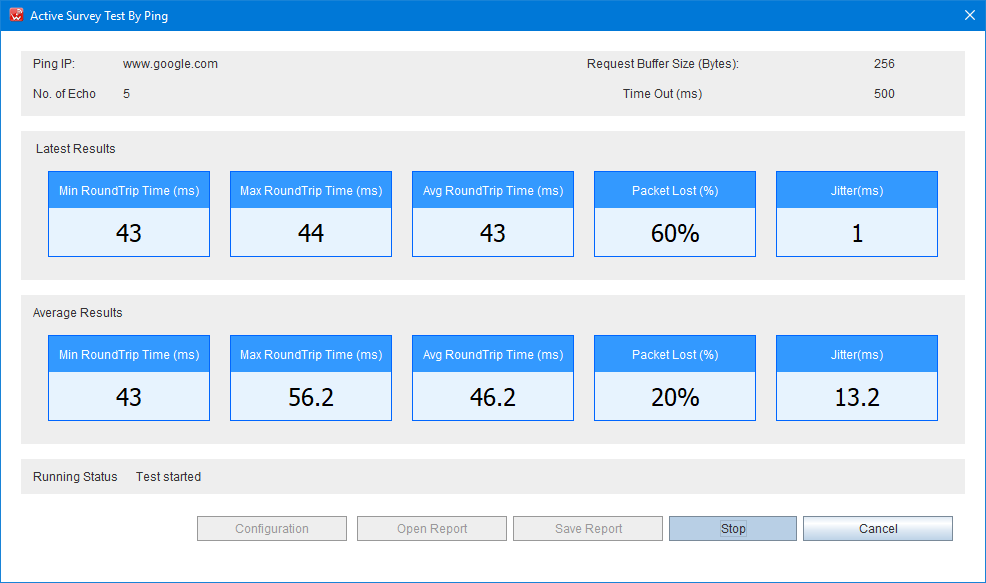
On the top of the window, it is the information bar for the configuration of the Ping test.
The beneath of the chart are running data for latest results and average results.
The next of the running data is running status bar, it displays the running status of the current Ping test.
The control buttons at the bottom of the window, users can click on the buttons to start a function for the Ping test, such as start/stop a test, configuration for a test, or open/save the test to a PDF report file, when "Cancel" button is clicked, the test stops and the window is closed, the system is back to WiTuners Main Windows.
2. The window of configuration for Active Survey Test By Ping
When "Configuration" button is clicked, the configuration windows comes up to front to set the test as below:
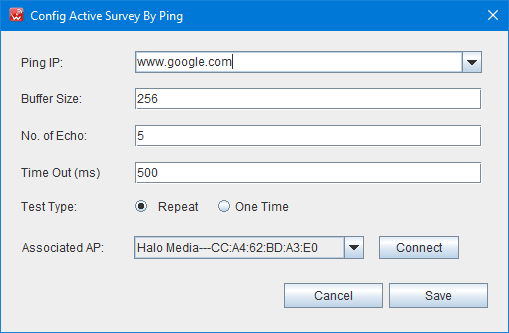
Most of parameters for an Ping test can be setting by the configuration windows. Users can select a specific access point for the test to be connected on the Associated AP list, which scanned all of available APs in the range of network adapter in your computer, automatically.
2. The window of "Save Report"
When "Save Report" button is clicked, the windows comes up to front to set the report as below:
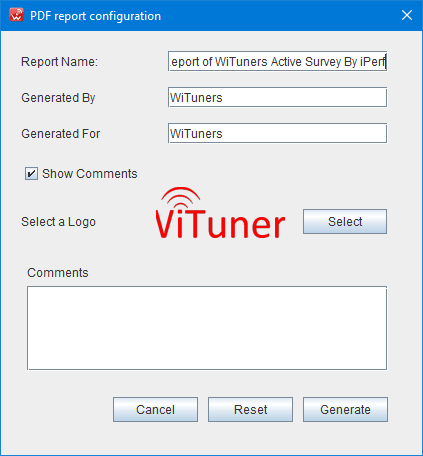
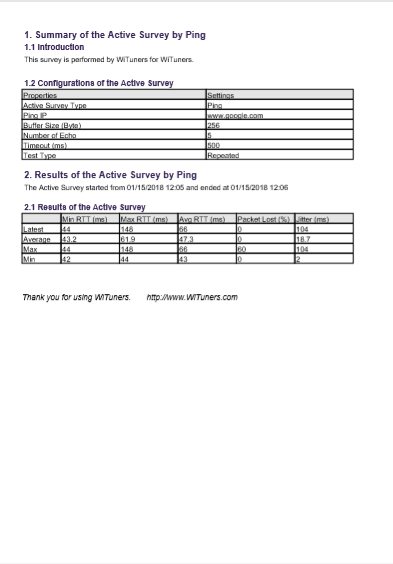
Users can customized your test PDF report by the window, after clicked "Generate" button, a customized the report will be opened as below.
|